Services
OGC WMTS API
In this section, you will see how to use WMTS to browse content from VtWeb to other GIS
Creating the base url
To use the power of the VtWeb framework with WMTS, we first need to create our base url.
First, i need to setup the tile we want to display by defining the MODULEID, DATASETID, GRANULEID and the POF-ML STYLE we want to use.
MODULEID=VtSentinelMsi&DATASETID=Sentinel2A/MSI&GRANULEID=S2A_MSIL1C_20220225T111051_N0400_R137_T28PGC_20220225T132829&STYLE=rgb(sta(QT_B11,HT_B11,0.02,0.02),sta(QT_B08,HT_B08,0.02,0.02),sta(QT_B02,HT_B02,0.02,0.02))Then, we need to convert it in base64 to create an urlToken, the python code for that is :
urlToken = base64.b64encode(parameters.encode('utf-8')).decode(('utf-8'))As our urlToken is ready, we can combine it with the following WMTS base url :
https://visioterra.org/VtWeb/servlet/wmts/The WMTS url is now ready, we just have to adapt it to use it with with compatible services
https://visioterra.org/VtWeb/servlet/wmts/TU9EVUxFSUQ9VnRTZW50aW5lbE1zaSZEQVRBU0VUSUQ9U2VudGluZWwyQS9NU0kmR1JBTlVMRUlEPVMyQV9NU0lMMUNfMjAyMjAyMjVUMTExMDUxX04wNDAwX1IxMzdfVDI4UEdDXzIwMjIwMjI1VDEzMjgyOSZTVFlMRT1yZ2Ioc3RhKFFUX0IxMSxIVF9CMTEsMC4wMiwwLjAyKSxzdGEoUVRfQjA4LEhUX0IwOCwwLjAyLDAuMDIpLHN0YShRVF9CMDIsSFRfQjAyLDAuMDIsMC4wMikpWMTS : Leaflet usage
Down here is an use example of the WMTS API, allowing us to visualize a VtWeb tile with leaflet.
We will add the following parameters to the base url we made here in order to have leaflet displaying our product:
?SERVICE=WMTS&REQUEST=GetTile&VERSION=1.0.0&LAYER=layerId&STYLE=naturalColor&FORMAT=image/png&TILEMATRIXSET=EPSG:4326&TILEMATRIX=EPSG:4326:{z}&TILEROW={y}&TILECOL={x}It will give leaflet the abilities to get the tiles it needs to display the product.
WMTS : QGIS usage
Down here is an use example of the WMTS API, allowing us to visualize a VtWeb tile with QGIS
First, we will add the get capabilities to the base url we made here
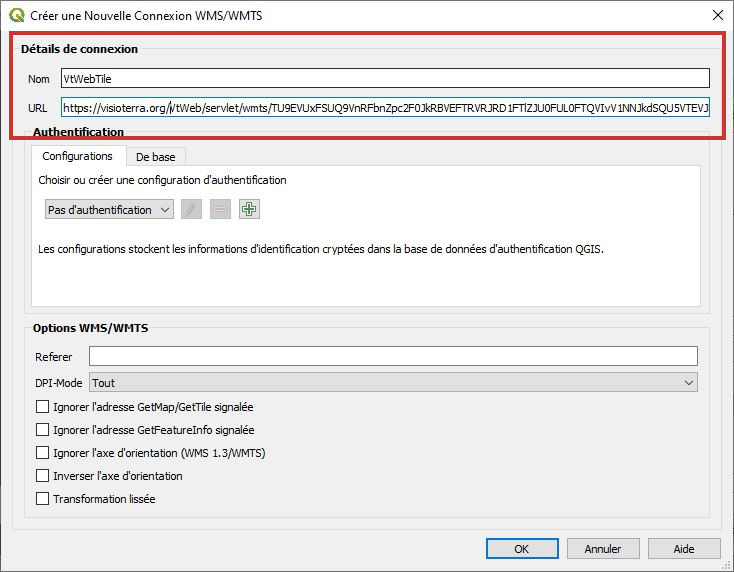
https://visioterra.org/VtWeb/servlet/wmts/TU9EVUxFSUQ9VnRTZW50aW5lbE1zaSZEQVRBU0VUSUQ9U2VudGluZWwyQS9NU0kmR1JBTlVMRUlEPVMyQV9NU0lMMUNfMjAyMjAyMjVUMTExMDUxX04wNDAwX1IxMzdfVDI4UEdDXzIwMjIwMjI1VDEzMjgyOSZTVFlMRT1yZ2Ioc3RhKFFUX0IxMSxIVF9CMTEsMC4wMiwwLjAyKSxzdGEoUVRfQjA4LEhUX0IwOCwwLjAyLDAuMDIpLHN0YShRVF9CMDIsSFRfQjAyLDAuMDIsMC4wMikp?SERVICE=WMTS&VERSION=1.0.0&REQUEST=GetCapabilitiesOnce we have our WMTS url, just open QGIS and clic add WMTS
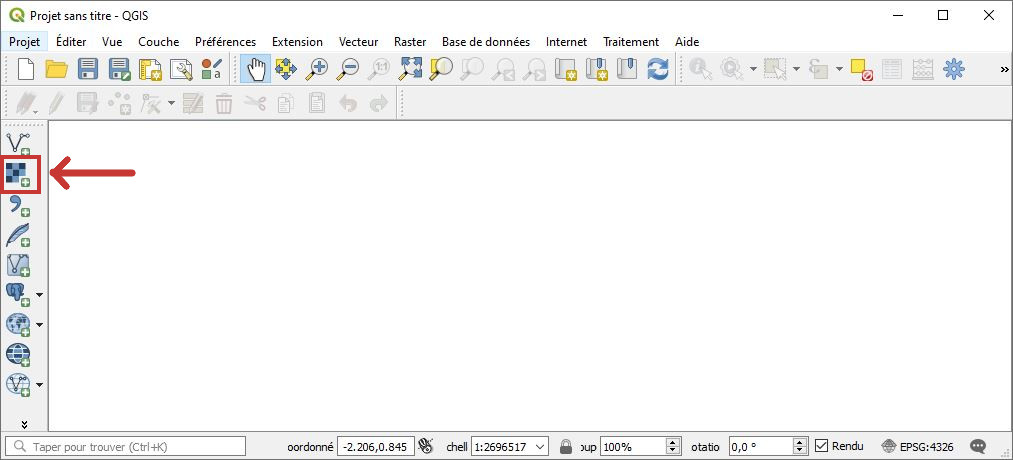
Then, clic new
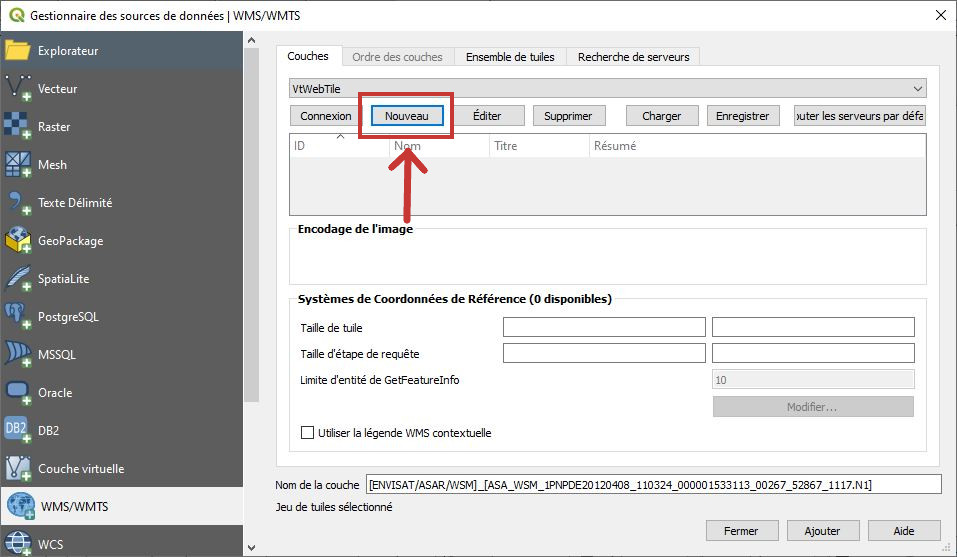
Add a name and the WMTS url
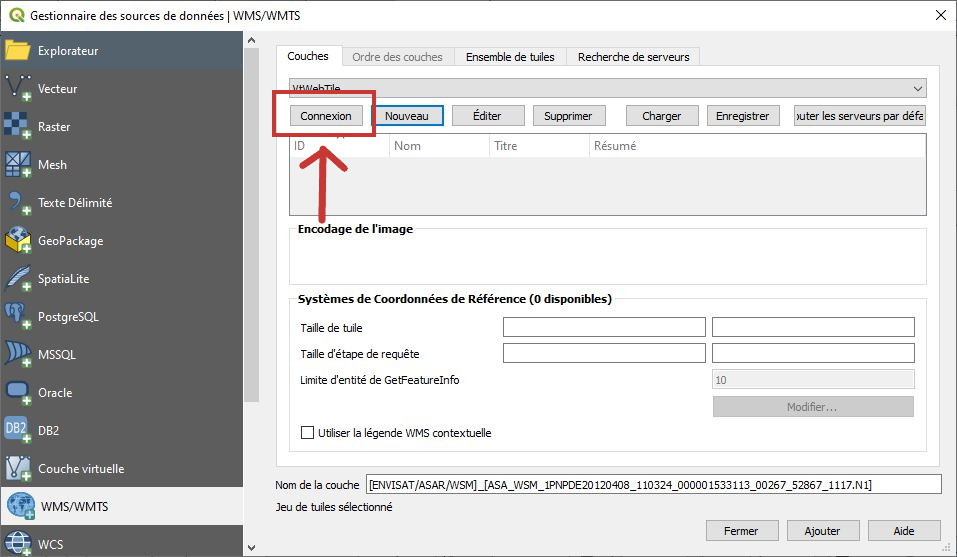
Clic on Connexion
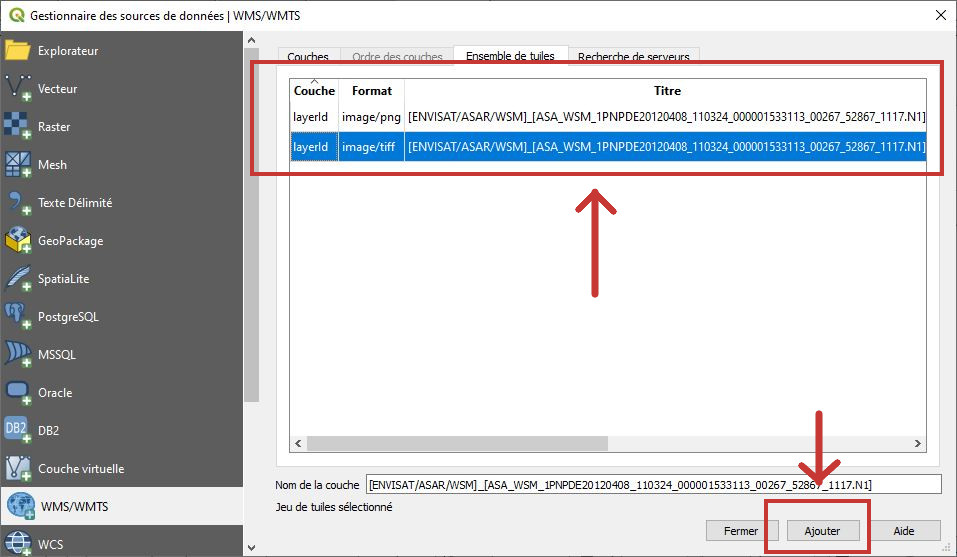
Choose either the tiff or the png layer and clic add
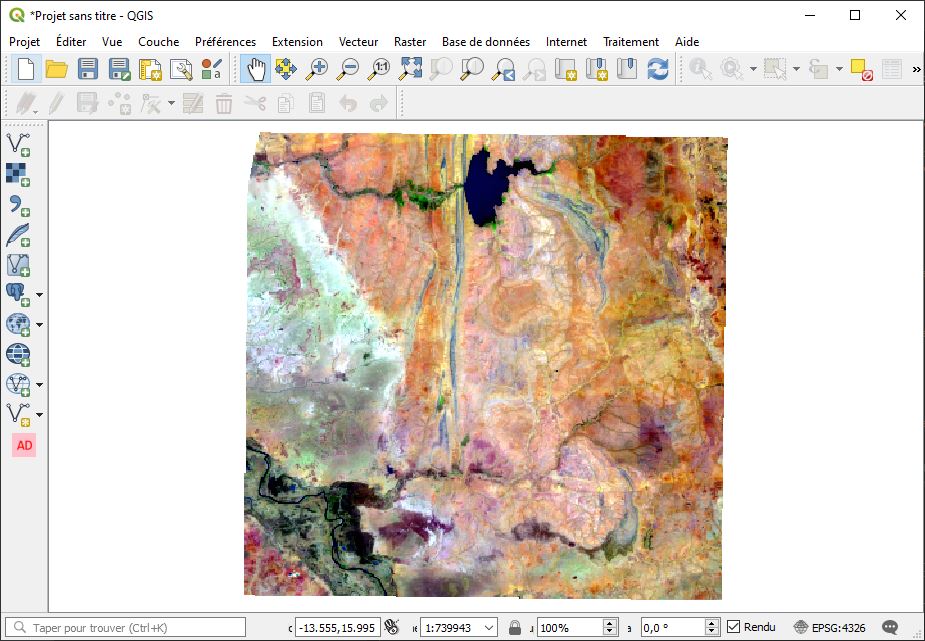
Well done, your WMTS layer is now displayed into QGIS